Sign in to Claude Desktop and Claude Code with a Microsoft work account
Connect your Microsoft Entra ID tenant to Standard Compute and push one managed Claude configuration to your devices. Employees sign in to Claude Desktop and Claude Code with their Microsoft work account, through our EU gateway, so there are no API keys to hand out. Access follows your Microsoft Entra groups through SCIM provisioning.
You do not need Claude Team or Claude Enterprise seats for this. IT sets it up once in your own tenant, and each employee then opens Claude and chooses Sign in with your organization.
How do I sign in to Claude with a Microsoft account?
Your IT admin connects Microsoft Entra ID to a Standard Compute company workspace and deploys the generated Claude settings through Intune or your device management tool. After that, open Claude, choose Sign in with your organization and sign in with your Microsoft work account in the browser window that opens. Claude returns to the app and you can start working.
Requests go through our EU gateway, which terminates TLS and runs in Finland, and your account data is stored in Frankfurt.
| Who | Does what | Where |
|---|---|---|
| Microsoft Entra admin | Does what: Registers two single-tenant apps and one provisioning app, assigns the employee group | Where: Your Microsoft tenant |
| Standard Compute company admin | Does what: Prepares the connection, approves groups, assigns each employee a plan | Where: Standard Compute dashboard |
| Device admin | Does what: Deploys the generated Claude connection settings | Where: Intune or your MDM |
| Employee | Does what: Opens Claude and chooses Sign in with your organization | Where: Claude Desktop |
What does the IT admin set up?
Seven steps, all in your own Microsoft tenant and your own company workspace. Microsoft sign-in for Claude needs the Single sign-on feature on your company workspace, available on its own or with Enterprise. An authorized IT partner can do the Microsoft steps for you.
Register the gateway API in Microsoft Entra
In the Entra admin center, open App registrations and create a single-tenant registration, for example SC Gateway API. Note its Application (client) ID and your Directory (tenant) ID.
Under Expose an API, set the Application ID URI to
api://<gateway-api-app-id>and add a delegated scope namedinferencethat requires admin consent. In the manifest, setapi.requestedAccessTokenVersionto2.Register the Claude desktop client
Create a second single-tenant registration, for example Claude for SC. Under Authentication, add the Mobile and desktop applications platform with the redirect URI
http://127.0.0.1/callback. No client secret is created or distributed.Under API permissions, add the gateway API's delegated
inferencepermission and choose Grant admin consent. In the client's Enterprise application, set Assignment required to Yes and assign the employee group that should use Claude.Prepare the connection in Standard Compute
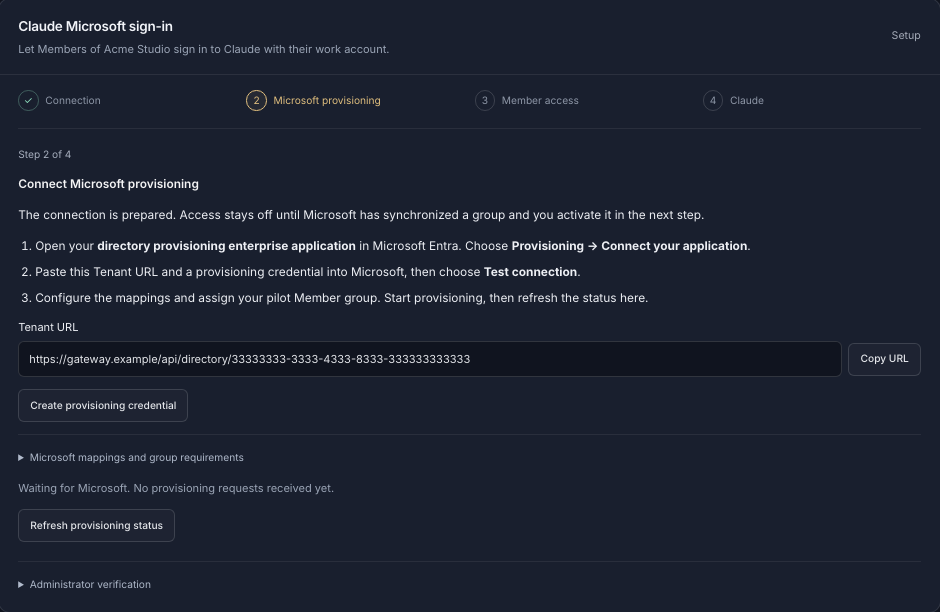
Sign in as a company admin, open Resources, then Claude Microsoft sign-in. Enter your tenant ID, the gateway API application ID and the Claude client application ID, then choose Prepare connection. The page walks you through four stages: connection, Microsoft provisioning, member access and Claude.
Connect SCIM provisioning from Entra
In Entra, create a separate non-gallery enterprise application, for example SC Directory Provisioning, and open Provisioning. In Standard Compute choose Create provisioning credential, then paste the Tenant URL and the credential into Entra and choose Test connection.
In Attribute mapping, map the Entra
objectIdto SCIMexternalIdand make it the matching attribute. Scope provisioning to assigned users and groups, assign the employee group and start provisioning.Approve groups and activate access
Back in Standard Compute, select the synchronized Entra group, set the maximum number of managed members and save the access rules. Check Microsoft's provisioning logs, then activate the connection.
Deploy the Claude configuration
Choose Download connection settings (JSON) and add the values to your managed Claude configuration in Intune, Group Policy or your MDM, next to the Claude policies you already have.
{
  "inferenceProvider": "gateway",
  "inferenceCredentialKind": "interactive",
  "inferenceGatewayBaseUrl": "https://eu.stdcmpt.com/entra/<company-connection-id>",
  "inferenceGatewayAuthScheme": "bearer",
  "inferenceGatewayOidcAuthFlow": "browser",
  "inferenceGatewayOidc": {
    "issuer": "https://login.microsoftonline.com/<tenant-id>/v2.0",
    "clientId": "<claude-client-application-id>",
    "bearerTokenType": "access_token",
    "scopes": "openid profile offline_access api://<gateway-api-application-id>/inference",
    "appendOfflineAccess": true
  }
}
Generated Claude connection settings (placeholders shown; use the values from your dashboard) Give each employee a budget
Standard Compute creates each employee's company key on their first sign-in. Assign a plan to that key in People & keys; that plan is the person's monthly budget.
What does the employee do?
There is nothing technical to do. Employees never visit the Standard Compute dashboard and never copy an API key.
Install Claude Desktop
Install Claude from claude.com/download or from your company's software catalog.
Reopen Claude once IT's settings arrive
If Claude was already running when the managed settings reached the device, quit it fully and open it again.
Choose Sign in with your organization
Claude opens your company's Microsoft sign-in page in the browser.
Sign in with your Microsoft work account
Use your usual work email and sign-in method. The browser hands you back to Claude, which shows the models your company approved for you.
How do I restrict Claude sign-in to my company's Microsoft tenant?
Both app registrations are single-tenant, so only accounts in your own Entra tenant can sign in to them. The Claude configuration names your tenant as the issuer, so Claude opens your tenant's sign-in page and nobody else's.
Set Assignment required to Yes on the Claude client's Enterprise application and assign only the approved employee group. Standard Compute admits people from the Entra groups you approve, delivered through SCIM provisioning, up to the member limit you set.
The connection is bound to your tenant ID and your two application IDs in your company workspace. Nobody needs an account in a Standard Compute tenant, and no shared partner login exists.
How do budgets and model allow-lists apply to people who sign in with Microsoft?
Every employee who signs in with Microsoft uses their own company key, so the controls you set on keys and on the company apply to them the moment they sign in.
| Control | What it does | Set for |
|---|---|---|
| Monthly budget | What it does: Every person and app gets a fixed monthly budget that never overruns | Set for: Each person's key |
| Spending caps | What it does: Spending caps per key and for the whole company | Set for: Key, company |
| Top-off | What it does: Optional top-off from a prepaid company balance keeps critical agents running | Set for: Key |
| Model allow-list | What it does: Decide which models each key can use, so every team member gets exactly the models you approve | Set for: Key |
| Provider allow-list | What it does: Choose exactly which inference providers may handle your data; lower levels can only narrow the rules | Set for: Company, team, key |
| Europe rule | What it does: Every request, including retries and fallbacks, is served only by approved European inference endpoints | Set for: Company, team, key |
Budgets are set per person and per app key, with caps for the whole company.
Claude also runs without 5-hour or weekly windows: agents run until the monthly budget is used, and Claude is served across several clouds, so one provider's quota or outage doesn't stop your work.
Do we also need single sign-on for the Standard Compute dashboard?
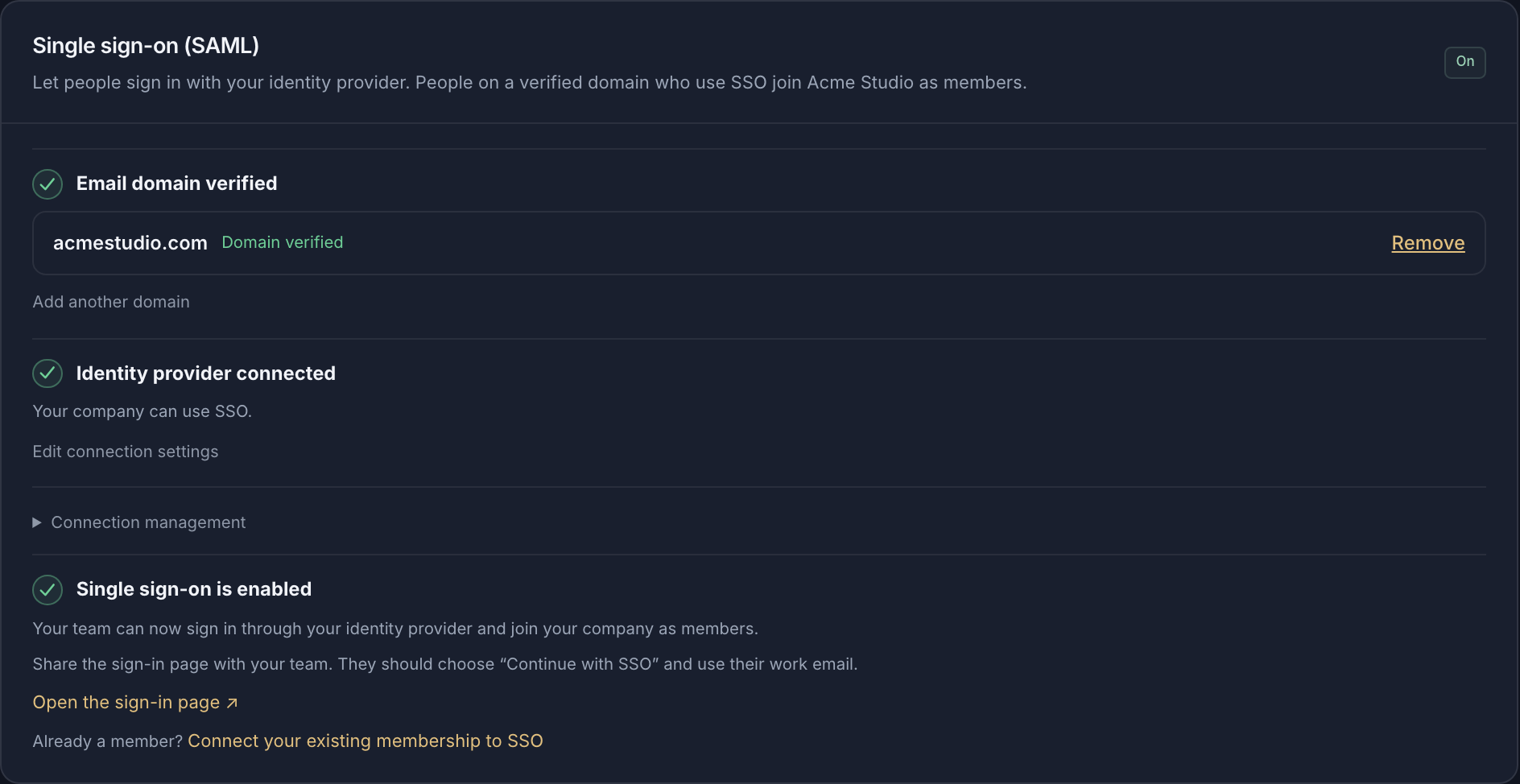
It is separate and worth doing for admins and anyone who uses the dashboard. Connect Microsoft Entra ID or any SAML identity provider so your people sign in to Standard Compute with their work accounts. Anyone on your verified domain joins your company automatically.
Setup takes four steps: verify your email domain with a DNS TXT record, create a SAML enterprise application in Entra with the Entity ID and reply URL from the dashboard, paste Entra's App Federation Metadata URL, then run a test sign-in and enable SSO. The website single sign-on guide has every field.
How does Anthropic's own Claude Team and Enterprise SSO work?
Checked on Anthropic's pages on 9 November 2026. Single sign-on is available on Claude Team, Claude Enterprise and Console organizations, with SAML or OpenID Connect. Microsoft Entra ID connects through the Claude app in the Entra gallery using SAML, after you verify your domain with a DNS TXT record.
Just-in-time provisioning is on Team and Enterprise. SCIM provisioning, which adds and removes members from your identity provider's assignments, is on Enterprise and Console only, and Anthropic lists a Microsoft Entra ID P1 or P2 license as required for it. Claiming existing accounts on your domain is Enterprise only.
Claude Code users on Team or Enterprise log in with the claude.ai account their admin invited them to, and admins can lock logins to their organization through managed settings. Anthropic lists Team at $20 per seat per month billed annually ($25 monthly) for 2 to 150 people, and Enterprise at $20 per seat per month billed annually with a 20-seat minimum, plus usage at API rates.
Claude Desktop also has a documented gateway mode that opens your organization's sign-in page (Microsoft Entra ID, Okta or any OpenID Connect provider) and sends a per-user token to the gateway. That is the mode this guide uses with Standard Compute.
When should we choose Claude Enterprise and when Standard Compute?
Both give you Microsoft work-account sign-in. Pick by what your company needs around it.
| If you need | Choose |
|---|---|
| Claude on the web and mobile apps with one seat per person, and Anthropic as your only vendor | Choose: Claude Team or Enterprise |
| Claiming every existing Claude account on your company domain | Choose: Claude Enterprise |
| SCIM from Entra for a small group, without a 20-seat minimum | Choose: Standard Compute |
| Claude, GPT, Gemini and open models behind one Microsoft sign-in | Choose: Standard Compute |
| A fixed monthly budget per person and no 5-hour or weekly windows | Choose: Standard Compute |
| Requests served only by approved European inference endpoints | Choose: Standard Compute with a Europe rule |
What else do IT and security teams ask?
- Do employees need a Claude Team or Enterprise seat?
- No. With this setup Claude Desktop sends requests to Standard Compute, and each employee uses their own company key with its own monthly budget.
- Do we have to hand out API keys?
- No. Employees sign in with their Microsoft work account, so there are no API keys to hand out or rotate on laptops.
- Can we use Okta or Google Workspace instead of Microsoft?
- Claude sign-in through Standard Compute uses Microsoft Entra ID. Dashboard single sign-on works with Microsoft Entra ID or any SAML identity provider, such as Okta.
- Who in our company does the setup?
- A company administrator sets it up in the Standard Compute dashboard together with your Microsoft Entra admin. An IT partner can do it on your behalf in your own tenant.
- Is a client secret involved?
- No. The Claude client is a public desktop app registration with a loopback redirect, and Claude handles the browser sign-in and token refresh.
- Where are requests processed?
- Microsoft sign-in runs through our EU gateway, which terminates TLS and runs in Finland. Your account data is stored in Frankfurt. Add a Europe rule and every request is served only by approved European inference endpoints.
- What does it cost?
- Microsoft sign-in for Claude needs the Single sign-on feature, on its own or with Enterprise, and each employee's key has its own monthly plan. See pricing.
Related pages
Sources, checked on 9 November 2026
- Anthropic: set up single sign-on (SSO)
- Anthropic: Microsoft Entra ID SSO setup
- Anthropic: set up JIT or SCIM provisioning
- Anthropic: claim and migrate accounts on your domain
- Anthropic: Claude plans and pricing
- Claude Code: authentication
- Claude Desktop: gateway sign-in with your identity provider
- Microsoft: provision users and groups with SCIM
- Standard Compute docs: Claude with Microsoft sign-in
- Standard Compute docs: website single sign-on